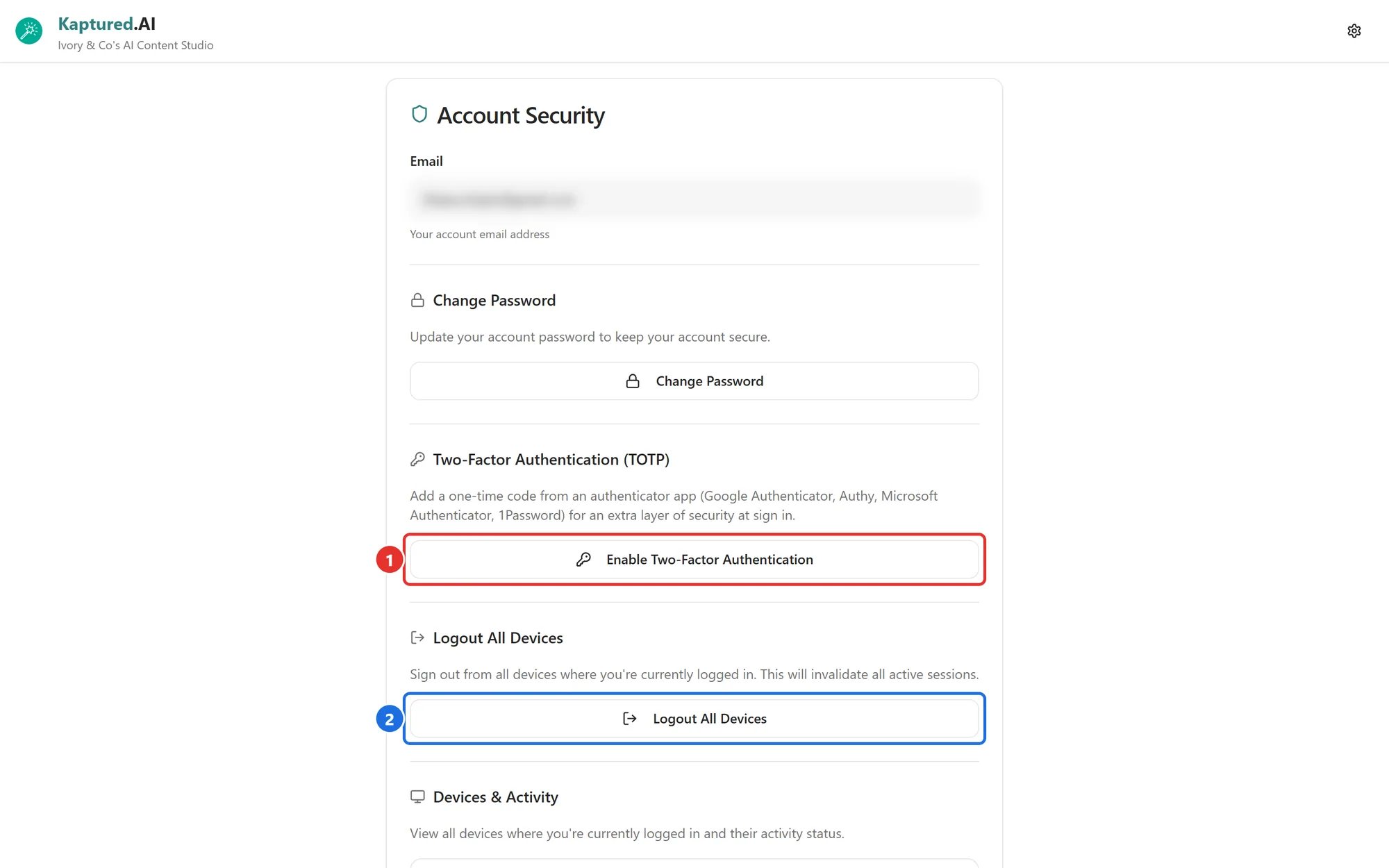
Account Security shows every device signed in to your account and lets you sign them all out. Open it from the profile menu.
Account Security page with Change Password, Two-Factor Authentication and Logout All Devices sections

Account Security. Logout All Devices is marked (2); Devices & Activity is further down.

Your email

Shown at the top for reference. It can’t be changed from the app.

Change your password

Under Change Password, enter a New Password and Confirm New Password (at least 6 characters), then click Change Password. You’re then asked whether to Logout All Devices. See Password Reset and Account Access.

Devices & Activity

A list of every device signed in to your account. Each shows:
  • The device, browser and operating system
  • Location, when known
  • Last active time
  • Active (used in the last 10 minutes) or Inactive
Sessions that have been inactive for more than 7 days can be removed with the trash icon.
See a device you don’t recognize? Click Logout All Devices, then change your password and turn on two-factor authentication.

Logout All Devices

Signs you out everywhere, including this browser. Use it if you’ve signed in on a shared computer or lost a device. After confirming, sign in again.