

Select images
- Tick the checkbox on a tile.
- Tick a group header (for example “Today”) to select everything in it.
- Hold and drag across tiles to select them as you go.
- Drag a box over empty space to select everything inside it. Hold Ctrl, Cmd or Shift to add to what’s already selected.
- Select all loaded selects everything loaded so far.
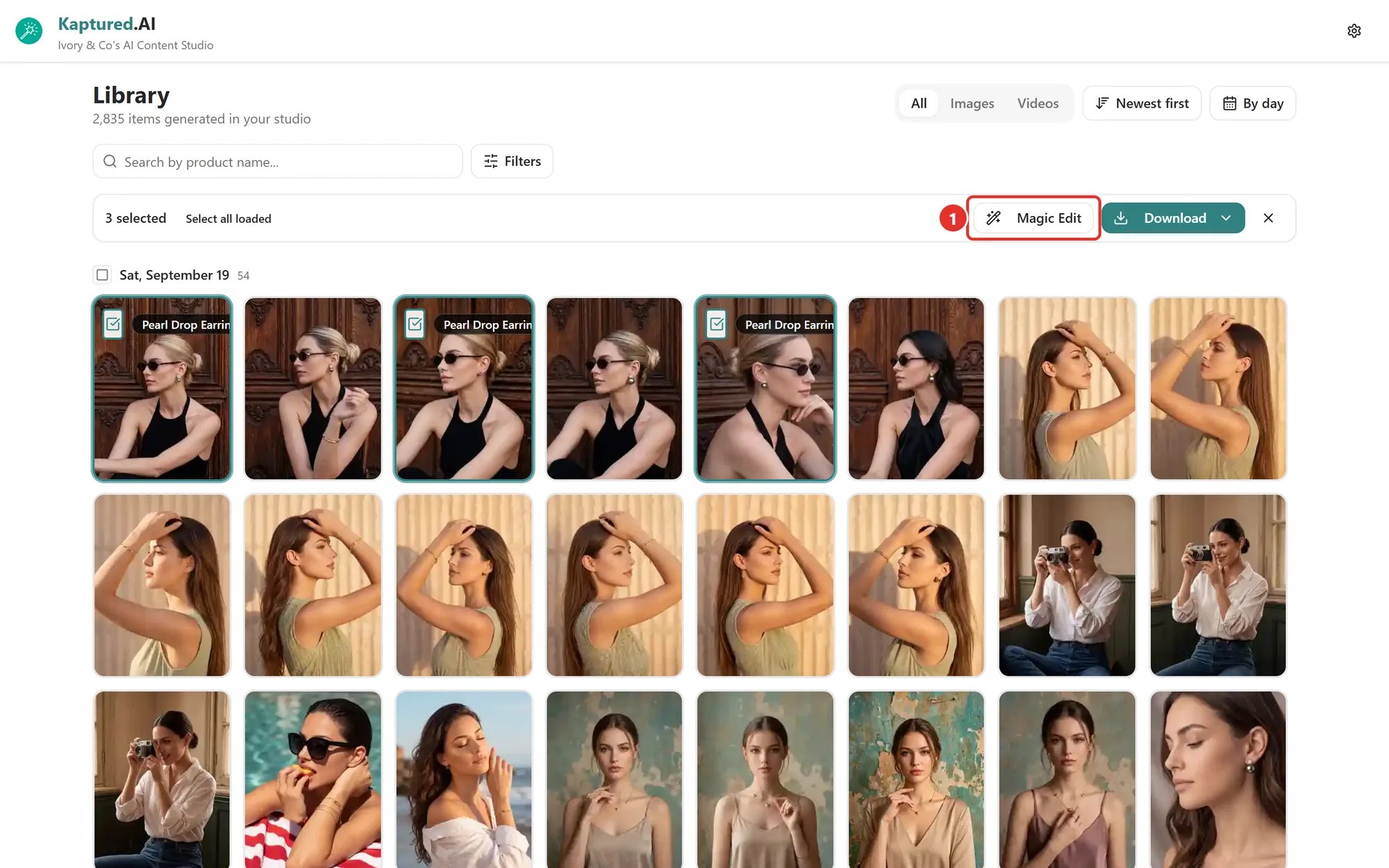
Three images selected. The toolbar shows the count, Magic Edit (1) and Download.
Download in bulk
- Select images and videos.
- Click Download and choose:
- Originals: full-quality files.
- Compressed: images as WebP (much smaller). Videos stay MP4.
- A progress message shows Preparing x / y files…. Click Cancel to stop.
kaptured-generations-24-files.zip. If any files can’t be fetched, the message tells you how many were skipped.
Bulk Magic Edit
Apply one of your saved Magic Edit designs to every selected image, for example your logo and a “New Arrival” banner across a whole collection.- First, save a design: open any image, use Magic Edit, and click Save as design.
- In the Library, select images and click Magic Edit (1).
- Pick a Design template.
- Choose Download as: Original (PNG) or Compressed (WebP).
- Click Apply & Download.
Bulk Magic Edit is available on paid plans.