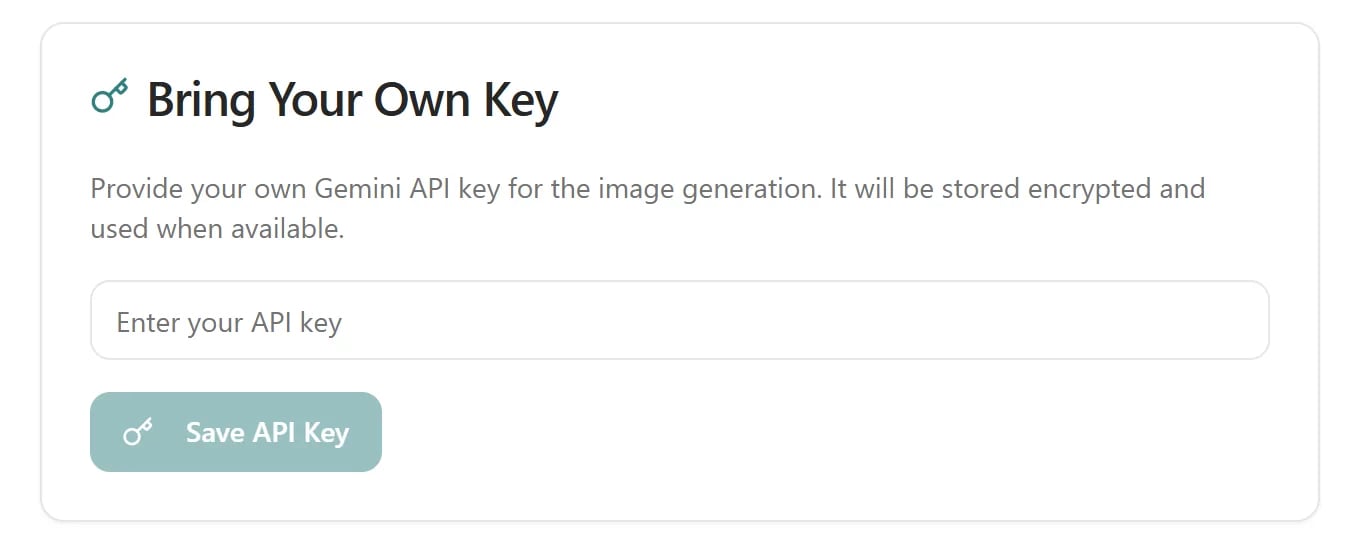
The API Keys page lets you add your own Google Gemini API key. When a key is saved, image generation uses it when available. This is optional. Kaptured AI works fully without it.
Bring Your Own Key card with an API key field and Save API Key button

The API Keys page.

Add your key

  1. Create an API key in Google AI Studio. It starts with AIza.
  2. In Kaptured AI, open the profile menu and go to API Keys.
  3. Paste the key into Enter your API key and click Save API Key.
You see “Your API key has been saved and is ready to use.” The key is stored encrypted and shown as ****** from then on. In the studio’s Final Settings, a badge shows Your own Gemini API key in use.

Change or remove your key

Click Clear Key. To change it, clear the old key and save the new one.

If the key won’t save

Q: Does my own key change what I pay in credits?

No. Credits are charged the same way with or without your own key. See How Credits Work.

Q: Is there one key per person or per shop?

One key per shop.