

Convert to Video is available on paid plans.
Create a video
- Open an image in the viewer, hover over it, and click Convert to Video in the preset row.
- Crop start frame opens first. Choose 16:9 (horizontal) or 9:16 (vertical), adjust the zoom, and click Apply crop. You can change it later with Adjust crop. The Image to Video dialog then opens.
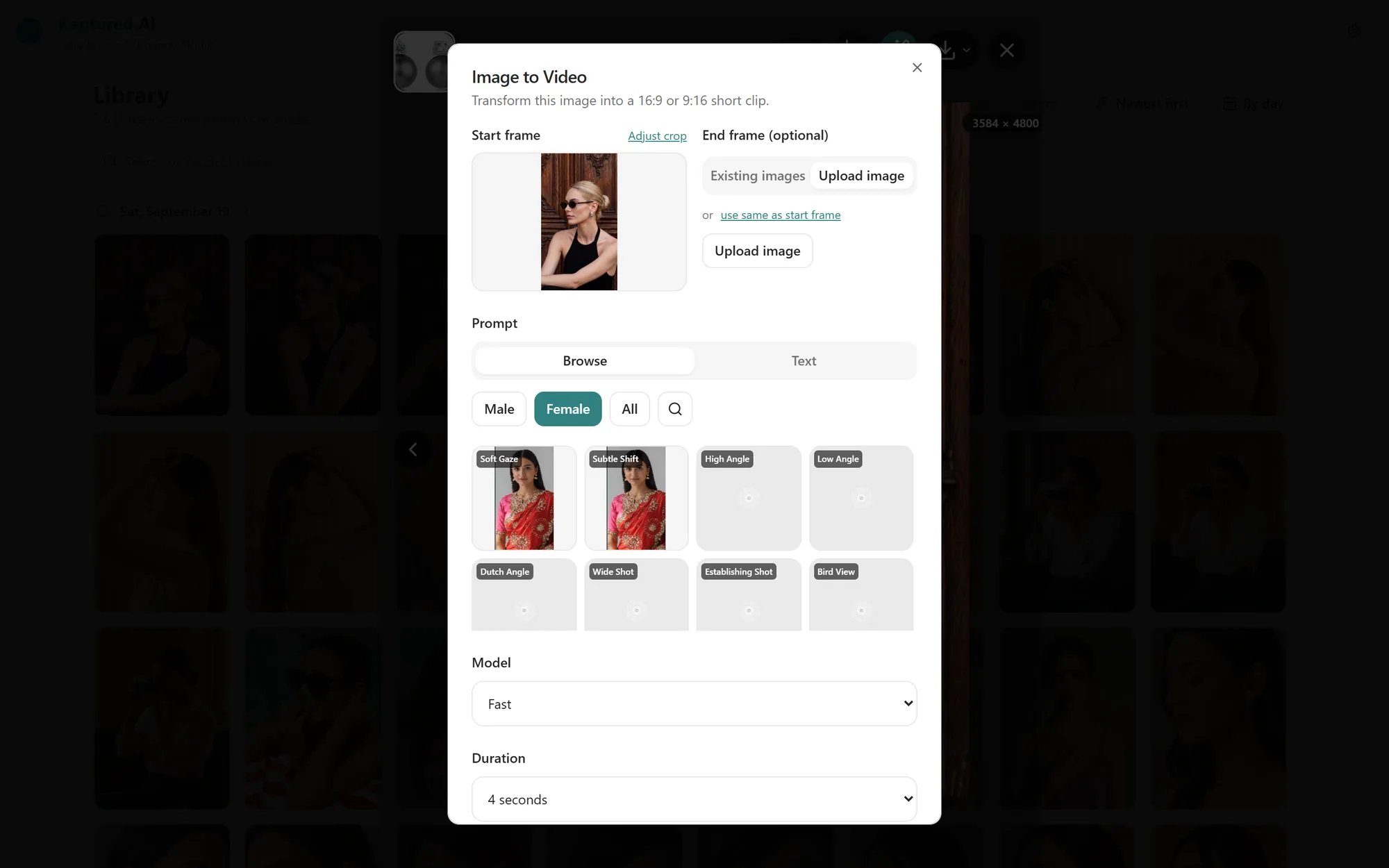
The Image to Video dialog. Scroll down for Duration and Generate Video.
- End frame (optional): pick another image from Existing images, Upload image, or click use same as start frame. The video moves from the start frame to the end frame.
- Prompt: choose a motion from Browse (filter by Male, Female or All), or describe it on the Text tab.
- Model: Fast (default), Lite, Quality or Omni Flash.
- Duration: 4 seconds (default), 6 seconds or 8 seconds.
- Click Generate Video.
Credits
Credits per video. Your account may have different rates; the dialog shows the exact cost.
Writing a good motion prompt
The start frame already sets the look, so describe movement, not the scene:- Good: “Slow push-in as the model turns toward the camera, hair moving in a light breeze”
- Less good: “A woman in a red kurta in a garden” (this just repeats the image)
Troubleshooting
- “Video generation failed. Please try again or contact support.” ✅ Solution: Try again. If it fails twice, try a simpler prompt or a different model.
- “You’re out of credits to generate videos.” ✅ Solution: Top up or upgrade. See How Credits Work.
- “Convert to video is not included in your current plan.” ✅ Solution: Contact us to add video to your plan.