

Edit with a prompt
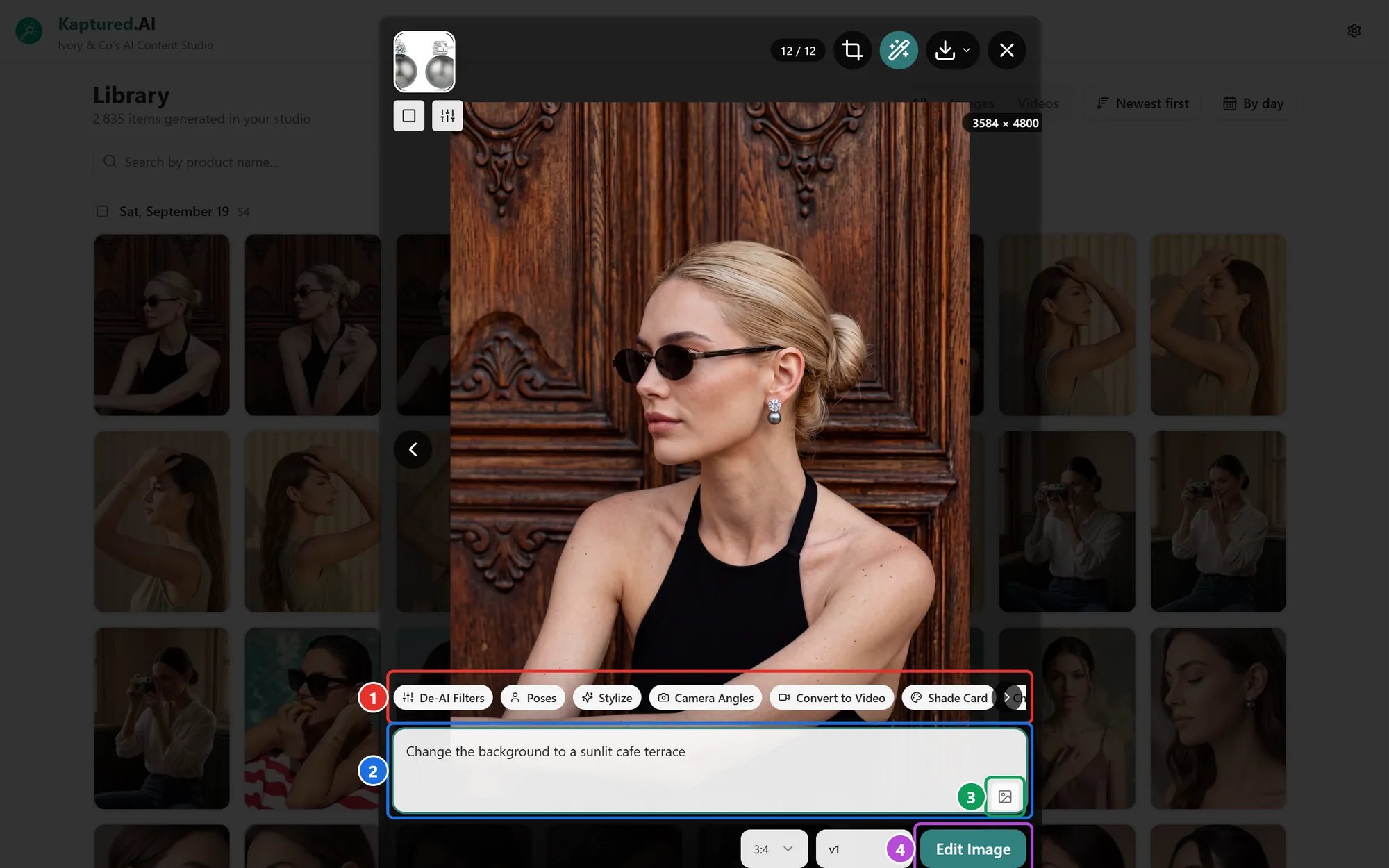
The editing tools appear when you hover over the image: presets (1), the prompt box (2), Attach image (3) and Edit Image (4).
- Open the image in the viewer and hover over it. The editing tools appear along the bottom.
- In the prompt box (2), describe what to change, for example “change the background to a sunlit café terrace” or “add a gold watch on her left wrist”.
- To show the AI what you mean, paste a reference image into the prompt box or click Attach image (3).
- Choose the aspect ratio and image engine next to the button.
- Click Edit Image (4), then Confirm Edit.
One-click presets
Above the prompt box is a row of presets (1). Use the arrow at the end of the row to see more:
There are also quick ideas matched to the model, for example Chair, Twirl, Lighting or Effect for women’s wear.
Edit many images at once
Select several images, then click Edit All (n). The same edit is applied to each one, one after another. It can take a few minutes; you can keep working meanwhile.Crop
Crop image in the viewer crops without using any credits.Tips
- Ask for one change at a time. “Change the background to a café” works better than a list of five changes.
- Be specific about position: “on her left wrist”, “in the top right corner”.
- If an edit changes the product, generate again from the product instead; edits are best for the scene and styling.