> ## Documentation Index
> Fetch the complete documentation index at: https://docs.kaptured.ai/llms.txt
> Use this file to discover all available pages before exploring further.
# Managing Your Subscription: Upgrade, Downgrade, Cancel and Invoices
> Change plan, update your card, download invoices and cancel or resume your subscription.
Everything about your subscription is on **Billing & Plans**. Payments are handled securely by Stripe.
## Your current plan
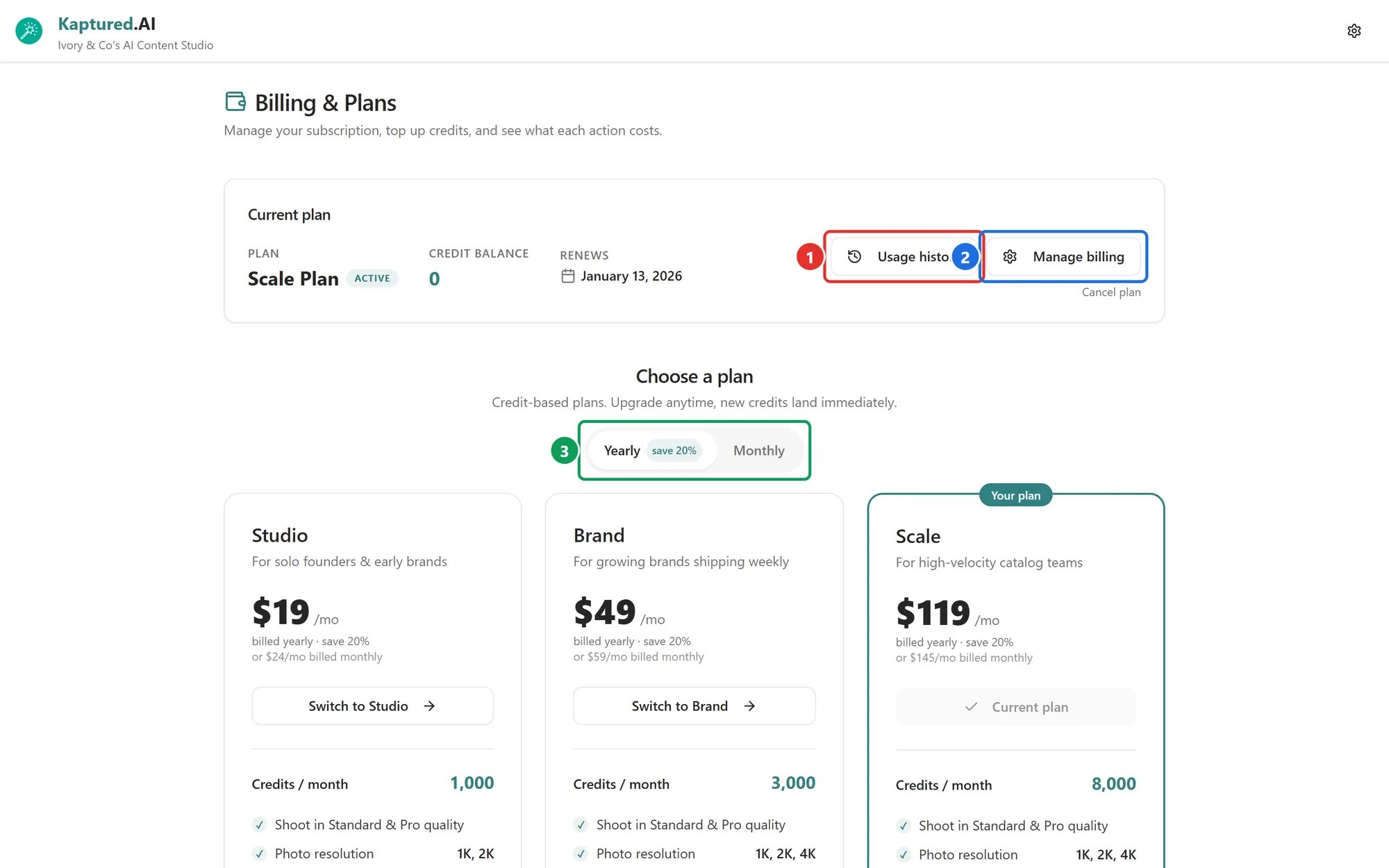 The **Current plan** card shows:
* **Plan**, for example "Brand Plan"
* **Credit balance**
* **Renews** (or **Cancels**) with the date
* A status badge: **Active**, **Canceling**, **Payment overdue** or **Expired**
## Upgrade
Click **Switch to {Plan}** on a bigger plan and confirm. You're charged the prorated difference for the rest of the billing period, and **the extra credits are added straight away**. For example, moving from Studio to Brand mid-month adds 2,000 credits.
You'll see "Plan updated." when it's done.
## Downgrade
Click **Switch to {Plan}** on a smaller plan and confirm. You keep the credits you already have this month; the smaller allowance applies from the next monthly refresh. Any price difference is prorated by Stripe.
## Switch between monthly and yearly
Use the **Yearly** / **Monthly** switch (3), then pick your plan.
## Update your card or download invoices
Click **Manage billing** (2). This opens the Stripe billing portal, where you can:
* Update your payment method
* See and download every invoice and receipt
* Change or cancel your plan
## Cancel
1. Click **Cancel plan** and confirm in the Stripe portal.
2. Your plan stays active until the end of the period you've paid for. The badge shows **Canceling** and the date reads **Cancels**.
3. After that date the plan ends. **Your remaining credit balance is kept**, but you don't get new monthly credits, and you'll need to choose a plan to keep using the studio.
## Resume
Changed your mind before the cancel date? Click **Resume plan**. Nothing else changes.
## Related articles
* [Pricing Plans](/subscription-and-billing/pricing-plans)
* [How Credits Work](/subscription-and-billing/credits-explained)
* [Payment Troubleshooting](/subscription-and-billing/payment-troubleshooting)
The **Current plan** card shows:
* **Plan**, for example "Brand Plan"
* **Credit balance**
* **Renews** (or **Cancels**) with the date
* A status badge: **Active**, **Canceling**, **Payment overdue** or **Expired**
## Upgrade
Click **Switch to {Plan}** on a bigger plan and confirm. You're charged the prorated difference for the rest of the billing period, and **the extra credits are added straight away**. For example, moving from Studio to Brand mid-month adds 2,000 credits.
You'll see "Plan updated." when it's done.
## Downgrade
Click **Switch to {Plan}** on a smaller plan and confirm. You keep the credits you already have this month; the smaller allowance applies from the next monthly refresh. Any price difference is prorated by Stripe.
## Switch between monthly and yearly
Use the **Yearly** / **Monthly** switch (3), then pick your plan.
## Update your card or download invoices
Click **Manage billing** (2). This opens the Stripe billing portal, where you can:
* Update your payment method
* See and download every invoice and receipt
* Change or cancel your plan
## Cancel
1. Click **Cancel plan** and confirm in the Stripe portal.
2. Your plan stays active until the end of the period you've paid for. The badge shows **Canceling** and the date reads **Cancels**.
3. After that date the plan ends. **Your remaining credit balance is kept**, but you don't get new monthly credits, and you'll need to choose a plan to keep using the studio.
## Resume
Changed your mind before the cancel date? Click **Resume plan**. Nothing else changes.
## Related articles
* [Pricing Plans](/subscription-and-billing/pricing-plans)
* [How Credits Work](/subscription-and-billing/credits-explained)
* [Payment Troubleshooting](/subscription-and-billing/payment-troubleshooting)