> ## Documentation Index
> Fetch the complete documentation index at: https://docs.kaptured.ai/llms.txt
> Use this file to discover all available pages before exploring further.
# Managing Your Products
> Search, AI Search, edit and delete products, and start a photoshoot from a product.
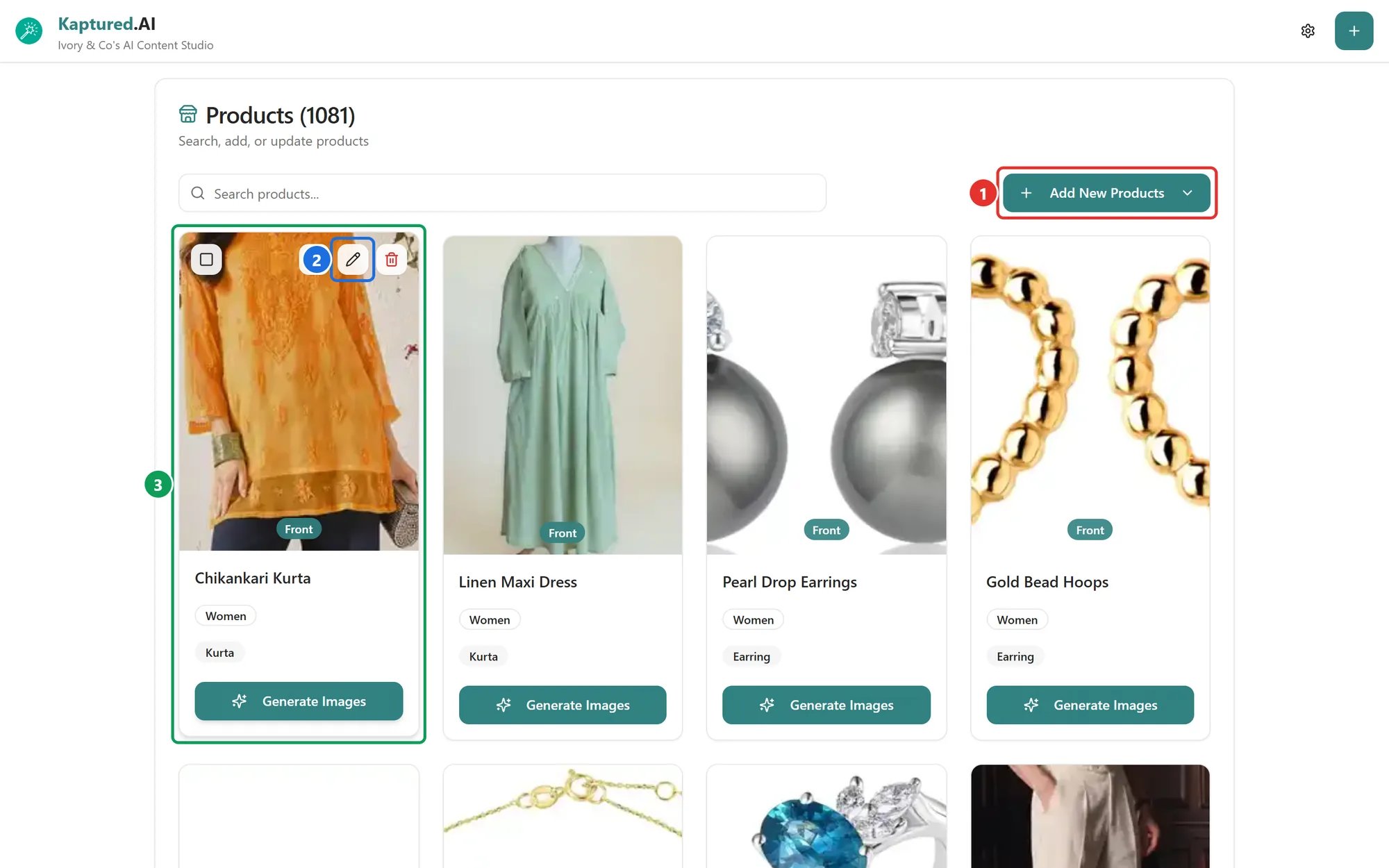
**Products Management** lists every product in your shop, 12 per page. This article covers finding, editing and deleting products.
 ## Find a product
* **Search products...** searches by product name.
* **AI Search** (paid plans) finds products by description, by a photo, or both. Type something like "red embroidered kurta", upload a photo, or combine the two, then click **Search Products**. While it's on, you see **AI Search active**; click the X to clear it.
## What a product card shows
Each card shows the product's photos (use the dots to switch between them) and badges for price, **For**, categories, stone type, colors and sizes.
Hover a card for three buttons:
* **View image:** full-screen view of the photos, with download.
* **Edit product** (2): opens the product form. This is also where you add **extra details** (description, price, colors, sizes).
* **Delete product:** deletes it after you confirm.
## Start a photoshoot from a product
Click **Generate Images** (3) on the card. The AI Photo Studio opens with that product selected. See [Your First Photoshoot](/ai-photo-studio/your-first-photoshoot).
## Delete products
* **One product:** hover the card, click **Delete product**, then **Delete**.
* **Several products:** tick the checkbox on each card (or **Select all on page**), then click **Delete** in the toolbar.
Deleting a product can't be undone. Images you already generated from it stay in the [Library](/library/library-overview) until they expire.
## Q: Can I import products from Shopify?
Not yet. **Import from Shopify** is coming in a future release. For now, use [Bulk Upload](/products/bulk-upload).
## Q: Why can't I add more products?
The Free plan allows 3 products. Upgrade to add more. See [Pricing Plans](/subscription-and-billing/pricing-plans).
## Q: Can I try a product without saving it?
Yes. In the AI Photo Studio, click **Add Temporary Product**. See [Your First Photoshoot](/ai-photo-studio/your-first-photoshoot#try-a-product-without-saving-it).
## Related articles
* [How to Add a Product](/products/adding-products)
* [Bulk Upload Products](/products/bulk-upload)
* [The Library](/library/library-overview)
## Find a product
* **Search products...** searches by product name.
* **AI Search** (paid plans) finds products by description, by a photo, or both. Type something like "red embroidered kurta", upload a photo, or combine the two, then click **Search Products**. While it's on, you see **AI Search active**; click the X to clear it.
## What a product card shows
Each card shows the product's photos (use the dots to switch between them) and badges for price, **For**, categories, stone type, colors and sizes.
Hover a card for three buttons:
* **View image:** full-screen view of the photos, with download.
* **Edit product** (2): opens the product form. This is also where you add **extra details** (description, price, colors, sizes).
* **Delete product:** deletes it after you confirm.
## Start a photoshoot from a product
Click **Generate Images** (3) on the card. The AI Photo Studio opens with that product selected. See [Your First Photoshoot](/ai-photo-studio/your-first-photoshoot).
## Delete products
* **One product:** hover the card, click **Delete product**, then **Delete**.
* **Several products:** tick the checkbox on each card (or **Select all on page**), then click **Delete** in the toolbar.
Deleting a product can't be undone. Images you already generated from it stay in the [Library](/library/library-overview) until they expire.
## Q: Can I import products from Shopify?
Not yet. **Import from Shopify** is coming in a future release. For now, use [Bulk Upload](/products/bulk-upload).
## Q: Why can't I add more products?
The Free plan allows 3 products. Upgrade to add more. See [Pricing Plans](/subscription-and-billing/pricing-plans).
## Q: Can I try a product without saving it?
Yes. In the AI Photo Studio, click **Add Temporary Product**. See [Your First Photoshoot](/ai-photo-studio/your-first-photoshoot#try-a-product-without-saving-it).
## Related articles
* [How to Add a Product](/products/adding-products)
* [Bulk Upload Products](/products/bulk-upload)
* [The Library](/library/library-overview)