> ## Documentation Index
> Fetch the complete documentation index at: https://docs.kaptured.ai/llms.txt
> Use this file to discover all available pages before exploring further.
# The Library: Every Image and Video You've Made
> Browse, search, filter and open everything you've generated, grouped by day, week, month or product.
The **Library** shows every image and video generated in your shop in one timeline: product photoshoots, customer try-ons, edits and videos.
 ## Browse
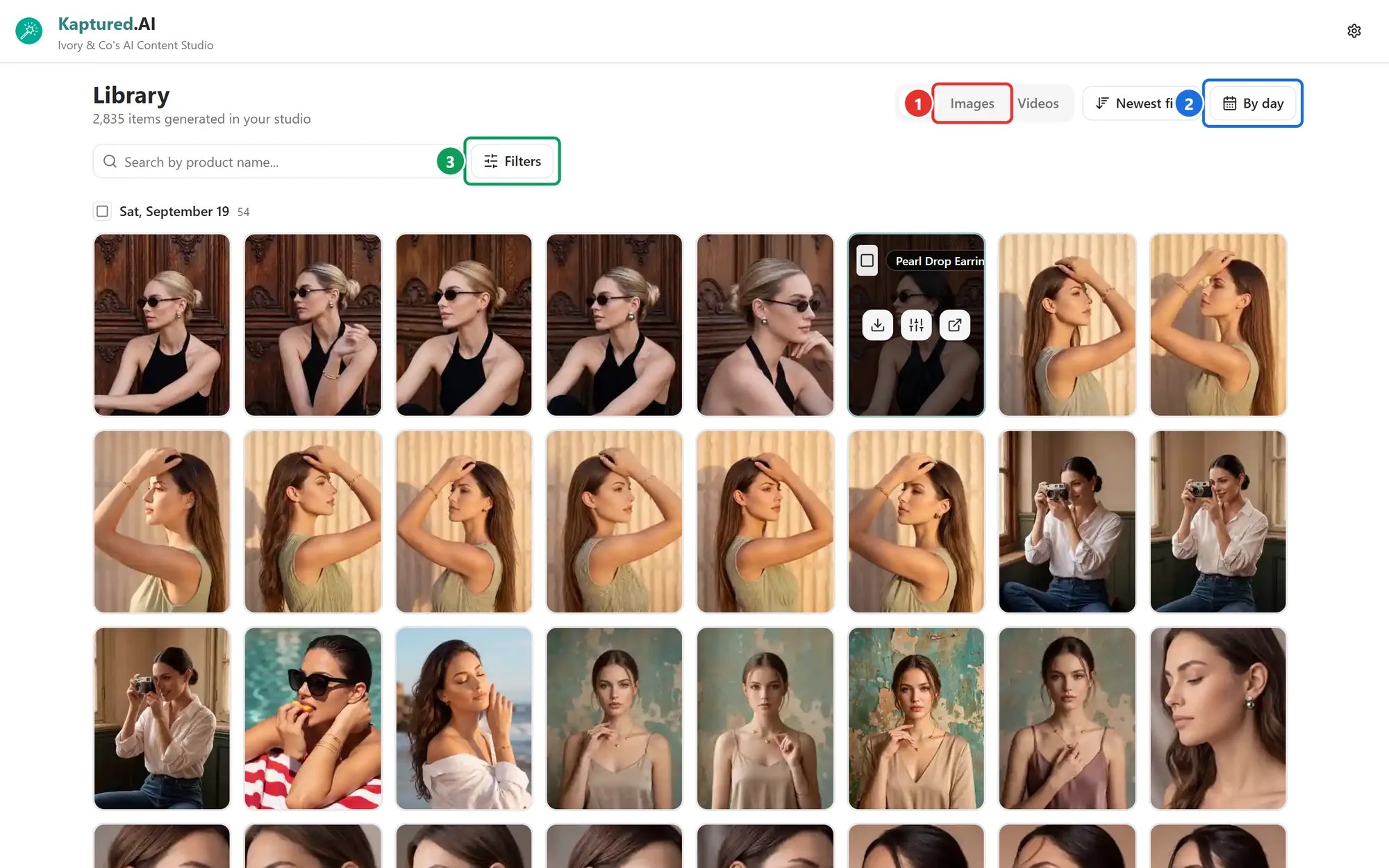
* **Tabs** (1): **All**, **Images** or **Videos**.
* **Sort:** **Newest first** (default) or **Oldest first**.
* **Group** (2): **By day** (default), **By week**, **By month** or **By product**. Grouping by product sorts by product name.
The Library remembers your choices on this browser. It loads 60 items at a time as you scroll; at the end you see "You've reached the end".
Each tile has a badge showing where it came from, such as **Product** or **Customer**, plus the product name and the engine used.
## Search and filter
* **Search by product name...** finds items by product.
* **Filters** (3) narrows down by **Category**, **Colors** and **Sizes**, taken from your products. Filters apply to product images. Click **Clear** to reset.
## Browse
* **Tabs** (1): **All**, **Images** or **Videos**.
* **Sort:** **Newest first** (default) or **Oldest first**.
* **Group** (2): **By day** (default), **By week**, **By month** or **By product**. Grouping by product sorts by product name.
The Library remembers your choices on this browser. It loads 60 items at a time as you scroll; at the end you see "You've reached the end".
Each tile has a badge showing where it came from, such as **Product** or **Customer**, plus the product name and the engine used.
## Search and filter
* **Search by product name...** finds items by product.
* **Filters** (3) narrows down by **Category**, **Colors** and **Sizes**, taken from your products. Filters apply to product images. Click **Clear** to reset.
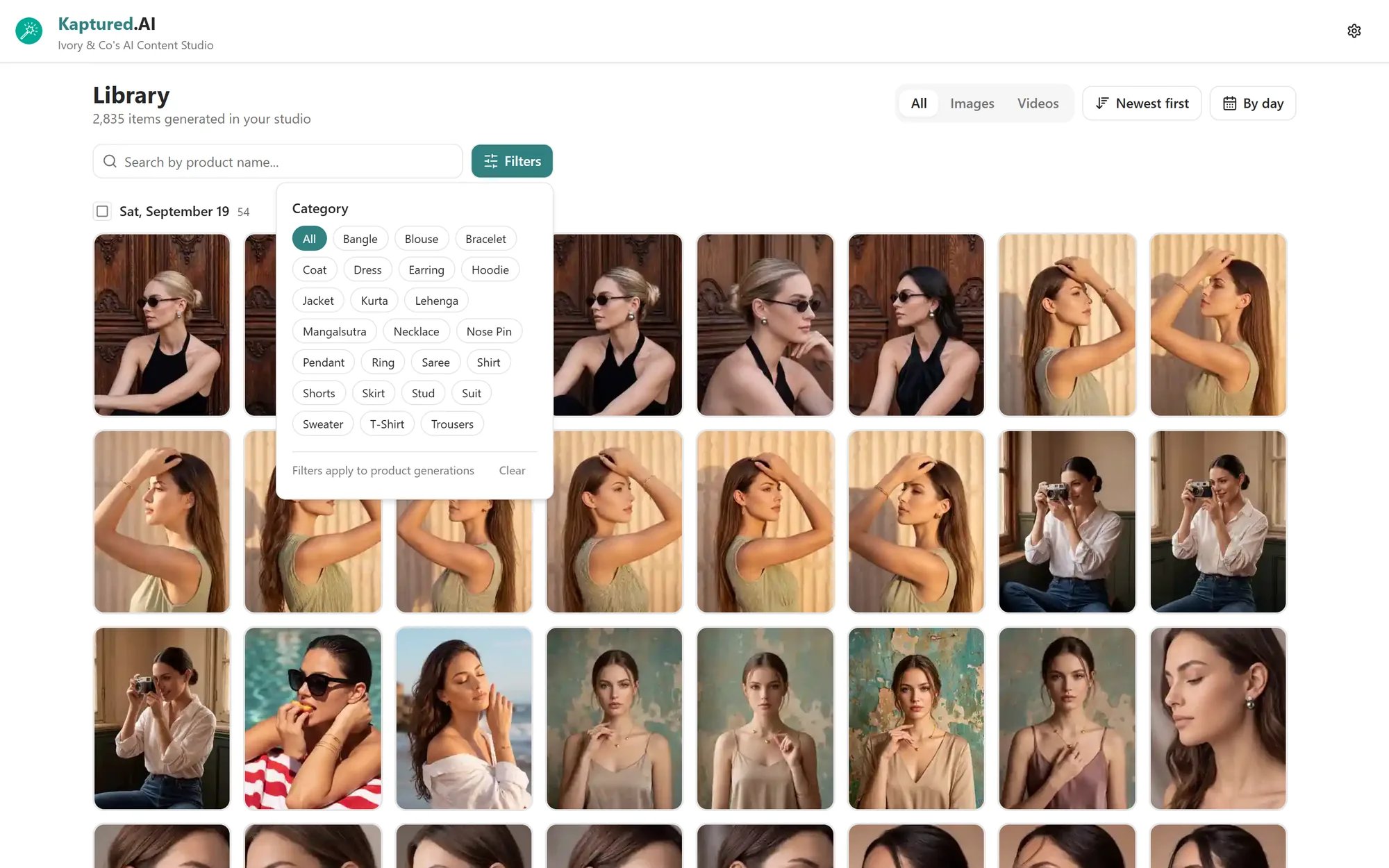 If nothing matches you'll see "No generations match your search or filters". Click **Clear search & filters**.
## Open an item
* **Product images** open in the full studio viewer, with all the editing tools: prompts, presets, Magic Edit, Convert to Video and downloads. Edits you make appear in the Library straight away. See [Editing Images with AI](/editing-and-video/editing-images).
* **Other images and all videos** open in a full-screen viewer. Use the arrows or **←** / **→** keys to move, and **Esc** to close. On a phone, swipe to move and pinch to zoom.
## Quick actions on a tile
Hover a tile for:
* **Compare with product image:** see the result next to your original product photo.
* **Open product in studio:** jump to the AI Photo Studio with that product selected.
* **Download:** the same options as in the studio. See [Download options](/editing-and-video/viewer-and-downloads#download-options).
* A checkbox to select it for [bulk actions](/library/bulk-actions).
## "Deletes in N days"
Generated files are kept for 30 days. In the last 7 days a tile shows **Deletes in N days**. Download anything you want to keep. See [Why Images Are Deleted After 30 Days](/library/auto-deletion).
## Q: How do I delete something from the Library?
You can't delete items by hand. Everything is removed automatically 30 days after it was created.
## Q: I just started an edit. Where is it?
It shows at the top under **Generating now** with a **Creating Magic...** card, and moves into the timeline when it's done.
## Related articles
* [Bulk Download and Bulk Magic Edit](/library/bulk-actions)
* [Why Images Are Deleted After 30 Days](/library/auto-deletion)
* [The Image Viewer and Download Options](/editing-and-video/viewer-and-downloads)
If nothing matches you'll see "No generations match your search or filters". Click **Clear search & filters**.
## Open an item
* **Product images** open in the full studio viewer, with all the editing tools: prompts, presets, Magic Edit, Convert to Video and downloads. Edits you make appear in the Library straight away. See [Editing Images with AI](/editing-and-video/editing-images).
* **Other images and all videos** open in a full-screen viewer. Use the arrows or **←** / **→** keys to move, and **Esc** to close. On a phone, swipe to move and pinch to zoom.
## Quick actions on a tile
Hover a tile for:
* **Compare with product image:** see the result next to your original product photo.
* **Open product in studio:** jump to the AI Photo Studio with that product selected.
* **Download:** the same options as in the studio. See [Download options](/editing-and-video/viewer-and-downloads#download-options).
* A checkbox to select it for [bulk actions](/library/bulk-actions).
## "Deletes in N days"
Generated files are kept for 30 days. In the last 7 days a tile shows **Deletes in N days**. Download anything you want to keep. See [Why Images Are Deleted After 30 Days](/library/auto-deletion).
## Q: How do I delete something from the Library?
You can't delete items by hand. Everything is removed automatically 30 days after it was created.
## Q: I just started an edit. Where is it?
It shows at the top under **Generating now** with a **Creating Magic...** card, and moves into the timeline when it's done.
## Related articles
* [Bulk Download and Bulk Magic Edit](/library/bulk-actions)
* [Why Images Are Deleted After 30 Days](/library/auto-deletion)
* [The Image Viewer and Download Options](/editing-and-video/viewer-and-downloads)