> ## Documentation Index
> Fetch the complete documentation index at: https://docs.kaptured.ai/llms.txt
> Use this file to discover all available pages before exploring further.
# Bulk Download and Bulk Magic Edit
> Select many images in the Library, then download them as a ZIP or apply a saved Magic Edit design to all of them.
The Library lets you work on many images at once: download them in one ZIP, or apply a saved Magic Edit design to all of them.
## Select images
* **Tick the checkbox** on a tile.
* **Tick a group header** (for example "Today") to select everything in it.
* **Hold and drag** across tiles to select them as you go.
* **Drag a box** over empty space to select everything inside it. Hold **Ctrl**, **Cmd** or **Shift** to add to what's already selected.
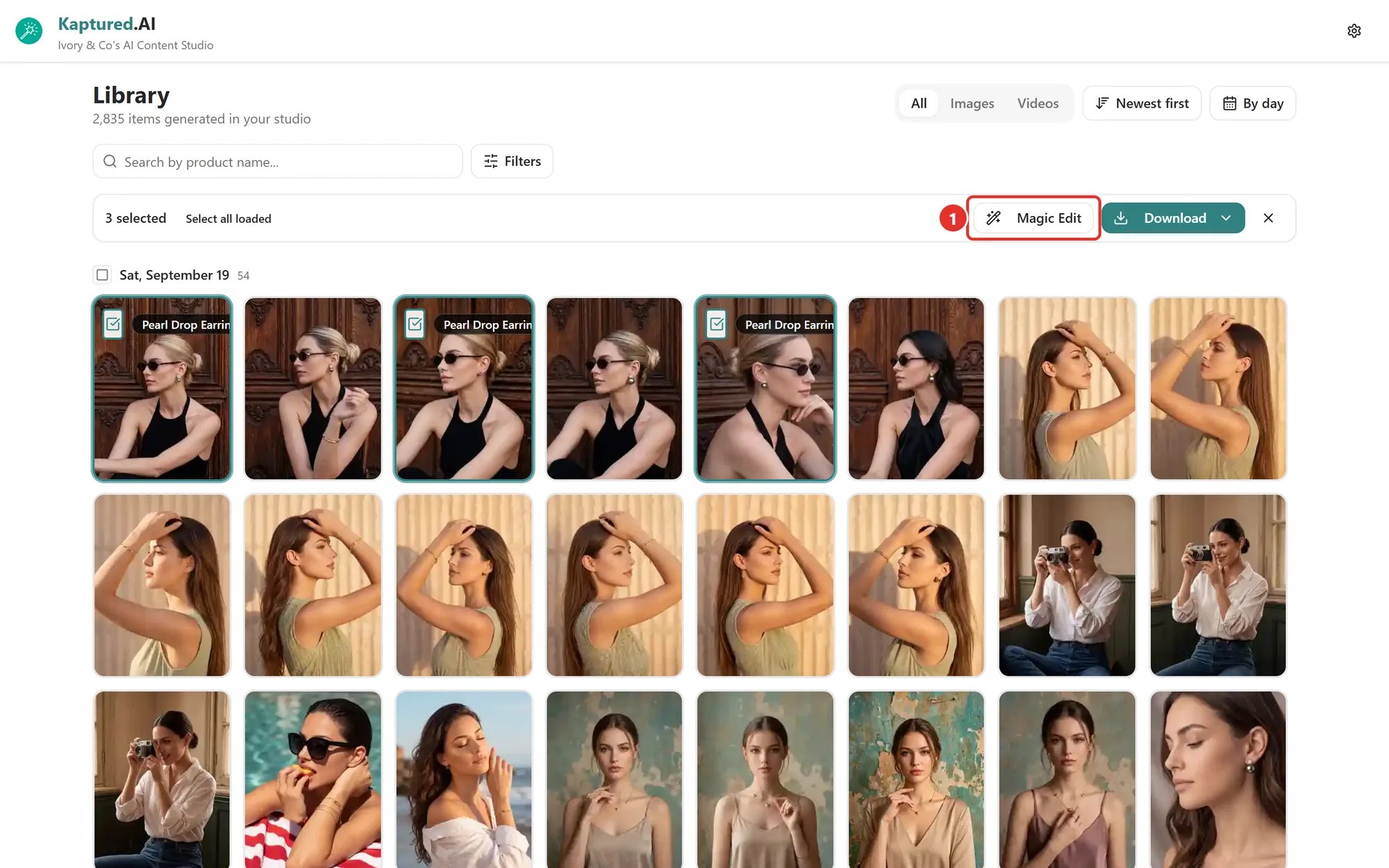
* **Select all loaded** selects everything loaded so far.
A plain click still opens the item. Press **Esc** or click the X to clear the selection.
 ## Download in bulk
1. Select images and videos.
2. Click **Download** and choose:
* **Originals:** full-quality files.
* **Compressed:** images as WebP (much smaller). Videos stay MP4.
3. A progress message shows **Preparing x / y files...**. Click **Cancel** to stop.
You get a ZIP such as `kaptured-generations-24-files.zip`. If any files can't be fetched, the message tells you how many were skipped.
## Bulk Magic Edit
Apply one of your saved [Magic Edit designs](/editing-and-video/magic-edit) to every selected image, for example your logo and a "New Arrival" banner across a whole collection.
1. First, save a design: open any image, use **Magic Edit**, and click **Save as design**.
2. In the Library, select images and click **Magic Edit** (1).
3. Pick a **Design template**.
4. Choose **Download as**: **Original (PNG)** or **Compressed (WebP)**.
5. Click **Apply & Download**.
Product names in the design update for each image automatically. Videos in the selection are skipped. You get a ZIP of the edited images.
Bulk Magic Edit is available on paid plans.
## Related articles
* [The Library](/library/library-overview)
* [Magic Edit](/editing-and-video/magic-edit)
* [Why Images Are Deleted After 30 Days](/library/auto-deletion)
## Download in bulk
1. Select images and videos.
2. Click **Download** and choose:
* **Originals:** full-quality files.
* **Compressed:** images as WebP (much smaller). Videos stay MP4.
3. A progress message shows **Preparing x / y files...**. Click **Cancel** to stop.
You get a ZIP such as `kaptured-generations-24-files.zip`. If any files can't be fetched, the message tells you how many were skipped.
## Bulk Magic Edit
Apply one of your saved [Magic Edit designs](/editing-and-video/magic-edit) to every selected image, for example your logo and a "New Arrival" banner across a whole collection.
1. First, save a design: open any image, use **Magic Edit**, and click **Save as design**.
2. In the Library, select images and click **Magic Edit** (1).
3. Pick a **Design template**.
4. Choose **Download as**: **Original (PNG)** or **Compressed (WebP)**.
5. Click **Apply & Download**.
Product names in the design update for each image automatically. Videos in the selection are skipped. You get a ZIP of the edited images.
Bulk Magic Edit is available on paid plans.
## Related articles
* [The Library](/library/library-overview)
* [Magic Edit](/editing-and-video/magic-edit)
* [Why Images Are Deleted After 30 Days](/library/auto-deletion)