> ## Documentation Index
> Fetch the complete documentation index at: https://docs.kaptured.ai/llms.txt
> Use this file to discover all available pages before exploring further.
# Creating Your Account and Signing In
> Sign up, verify your email, sign in, and what each sign-in message means.
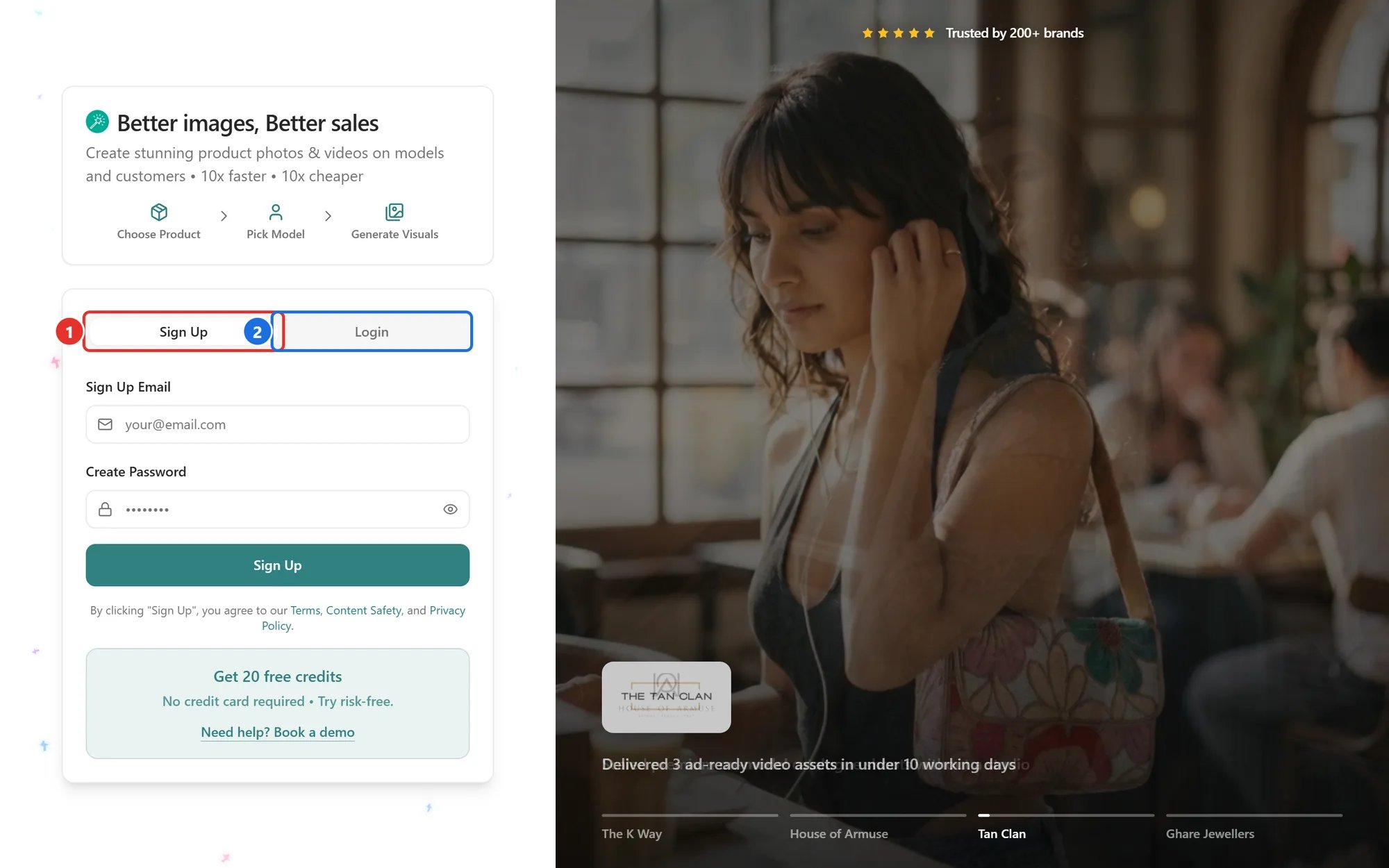
Kaptured AI uses one page for both signing up and signing in, with a **Sign Up** tab and a **Login** tab. This article covers both, plus email verification.
 ## Sign up
1. Open the app and choose the **Sign Up** tab (1).
2. Enter your **Sign Up Email** and a password in **Create Password**. The password must be at least 6 characters. Use the eye icon to check what you typed.
3. Click **Sign Up**.
You land on **Verify Your Email**. We have sent a confirmation link to the address you entered.
## Verify your email
1. Open your inbox and look for an email with the subject **Verify your Kaptured AI account**. The page has quick buttons that open Gmail, Outlook, Yahoo and iCloud.
2. Click the verification link. It brings you back to the sign-in page.
3. Sign in with your email and password.
Can't find the email? Check your spam or promotions folder first. If it still hasn't arrived after a few minutes, write to [aarushi@kaptured.ai](mailto:aarushi@kaptured.ai) and we'll sort it out.
## Sign in
1. Choose the **Login** tab (2).
2. Enter your **Email** and **Password** and click **Sign In**.
3. If you have [two-factor authentication](/account-and-security/two-factor-authentication) turned on, enter the 6-digit code from your authenticator app.
Where you land depends on your shop: if you haven't added any products yet you go to **Products Management**, otherwise to the **AI Photo Studio**.
## What the sign-in messages mean
| Message | What it means | What to do |
| ------------------------------------------------ | -------------------------------------------------------------- | ------------------------------------------------------------------------------------------------- |
| **Please confirm your email before signing in.** | You haven't clicked the verification link yet | Find the verification email and click the link |
| **Invalid email or password.** | The email or password is wrong | Check for typos, or [reset your password](/getting-started/onboarding-first-steps/password-reset) |
| **Unable to reach the server.** | Your connection dropped | Check your internet connection and try again |
| **Account already exists. Please log in.** | You tried to sign up with an email that already has an account | You are moved to the **Login** tab with your email filled in. Enter your password |
**Tip:** If you sign up with an email that already has an account *and* the password you typed is correct, you are simply signed in.
## Q: Can I sign in with Google?
Not at the moment. Sign in with your email and password.
## Q: Can I change the email on my account?
Your email is shown on **Account Security**, but it can't be changed from the app. Contact support if you need to move your account to a different email.
## Related articles
* [Password Reset and Account Access](/getting-started/onboarding-first-steps/password-reset)
* [Two-Factor Authentication](/account-and-security/two-factor-authentication)
* [Kaptured AI Onboarding Guide](/getting-started/onboarding-first-steps/onboarding-guide)
## Sign up
1. Open the app and choose the **Sign Up** tab (1).
2. Enter your **Sign Up Email** and a password in **Create Password**. The password must be at least 6 characters. Use the eye icon to check what you typed.
3. Click **Sign Up**.
You land on **Verify Your Email**. We have sent a confirmation link to the address you entered.
## Verify your email
1. Open your inbox and look for an email with the subject **Verify your Kaptured AI account**. The page has quick buttons that open Gmail, Outlook, Yahoo and iCloud.
2. Click the verification link. It brings you back to the sign-in page.
3. Sign in with your email and password.
Can't find the email? Check your spam or promotions folder first. If it still hasn't arrived after a few minutes, write to [aarushi@kaptured.ai](mailto:aarushi@kaptured.ai) and we'll sort it out.
## Sign in
1. Choose the **Login** tab (2).
2. Enter your **Email** and **Password** and click **Sign In**.
3. If you have [two-factor authentication](/account-and-security/two-factor-authentication) turned on, enter the 6-digit code from your authenticator app.
Where you land depends on your shop: if you haven't added any products yet you go to **Products Management**, otherwise to the **AI Photo Studio**.
## What the sign-in messages mean
| Message | What it means | What to do |
| ------------------------------------------------ | -------------------------------------------------------------- | ------------------------------------------------------------------------------------------------- |
| **Please confirm your email before signing in.** | You haven't clicked the verification link yet | Find the verification email and click the link |
| **Invalid email or password.** | The email or password is wrong | Check for typos, or [reset your password](/getting-started/onboarding-first-steps/password-reset) |
| **Unable to reach the server.** | Your connection dropped | Check your internet connection and try again |
| **Account already exists. Please log in.** | You tried to sign up with an email that already has an account | You are moved to the **Login** tab with your email filled in. Enter your password |
**Tip:** If you sign up with an email that already has an account *and* the password you typed is correct, you are simply signed in.
## Q: Can I sign in with Google?
Not at the moment. Sign in with your email and password.
## Q: Can I change the email on my account?
Your email is shown on **Account Security**, but it can't be changed from the app. Contact support if you need to move your account to a different email.
## Related articles
* [Password Reset and Account Access](/getting-started/onboarding-first-steps/password-reset)
* [Two-Factor Authentication](/account-and-security/two-factor-authentication)
* [Kaptured AI Onboarding Guide](/getting-started/onboarding-first-steps/onboarding-guide)