> ## Documentation Index
> Fetch the complete documentation index at: https://docs.kaptured.ai/llms.txt
> Use this file to discover all available pages before exploring further.
# The Image Viewer and Download Options
> Open a generated image, compare it with the product, and choose the right download format.
Every generated image can be opened full screen, compared with your original product photo, and downloaded in several formats.
## The Generations section
Under the studio steps, **Generations (N)** shows everything made for the selected product.
* Each card has an engine tag (for example **v1 - 2K**) so you know how it was made.
* **Compare with product image** opens your product photo and the result side by side.
* **Refresh** reloads the list.
* **Clear All** clears the list from view.
* **Edit Your Own Image** lets you upload any image and edit it with the same tools.
## The image viewer
Click an image to open it full screen.
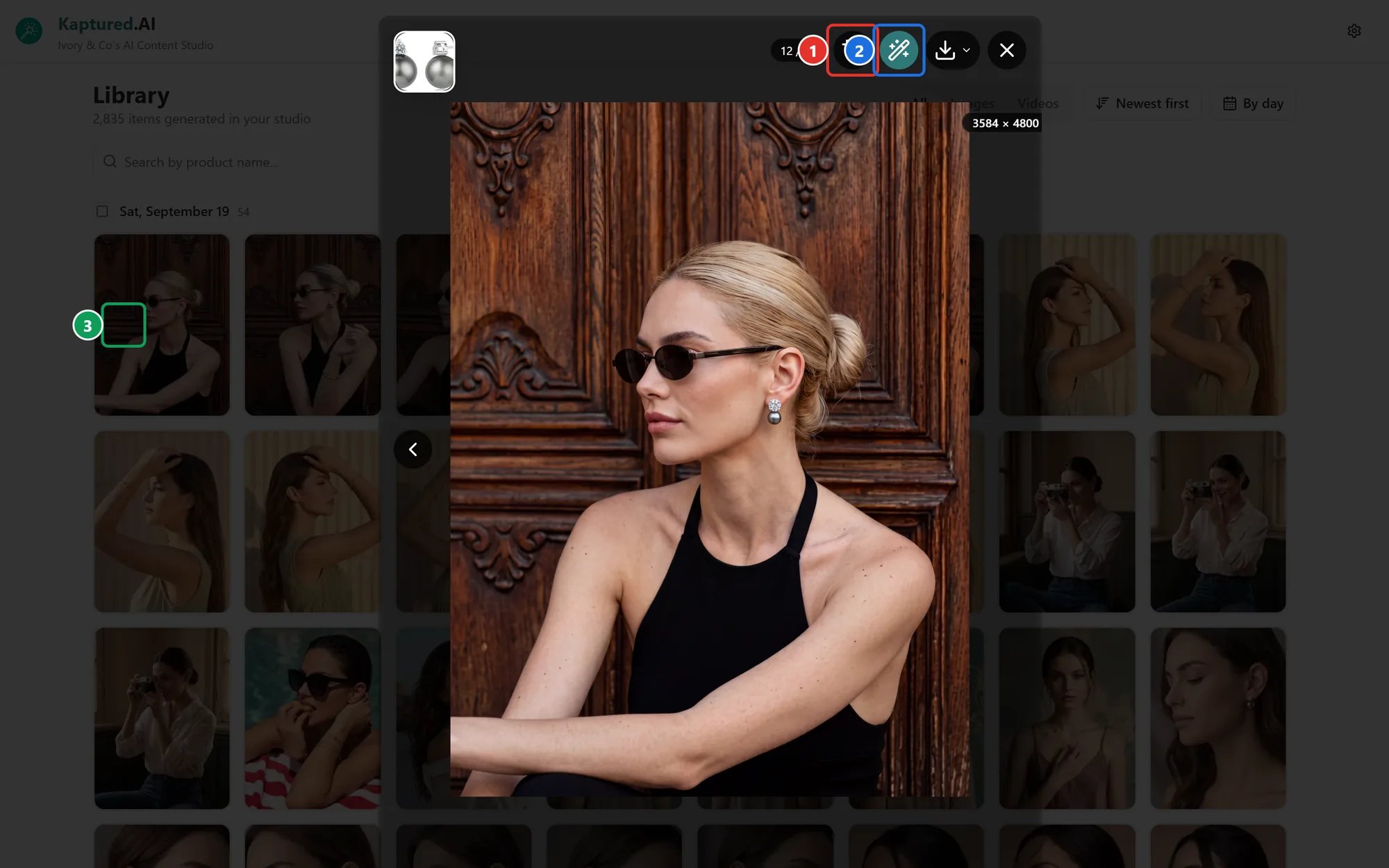 From here you can:
* Move between images with the arrows. The counter shows where you are, for example **12 / 12**.
* **Crop image** (1), including exact sizes for Amazon, Etsy, Shopify and ads. See [Marketplace Crops](/editing-and-video/marketplace-crops).
* **Magic edit with AI** (2) to add your logo and ad text. See [Magic Edit](/editing-and-video/magic-edit).
* Hover over the image to show the editing tools: presets, a prompt box and **Convert to Video**. See [Editing Images with AI](/editing-and-video/editing-images).
* **Download** (3).
## Download options
From here you can:
* Move between images with the arrows. The counter shows where you are, for example **12 / 12**.
* **Crop image** (1), including exact sizes for Amazon, Etsy, Shopify and ads. See [Marketplace Crops](/editing-and-video/marketplace-crops).
* **Magic edit with AI** (2) to add your logo and ad text. See [Magic Edit](/editing-and-video/magic-edit).
* Hover over the image to show the editing tools: presets, a prompt box and **Convert to Video**. See [Editing Images with AI](/editing-and-video/editing-images).
* **Download** (3).
## Download options
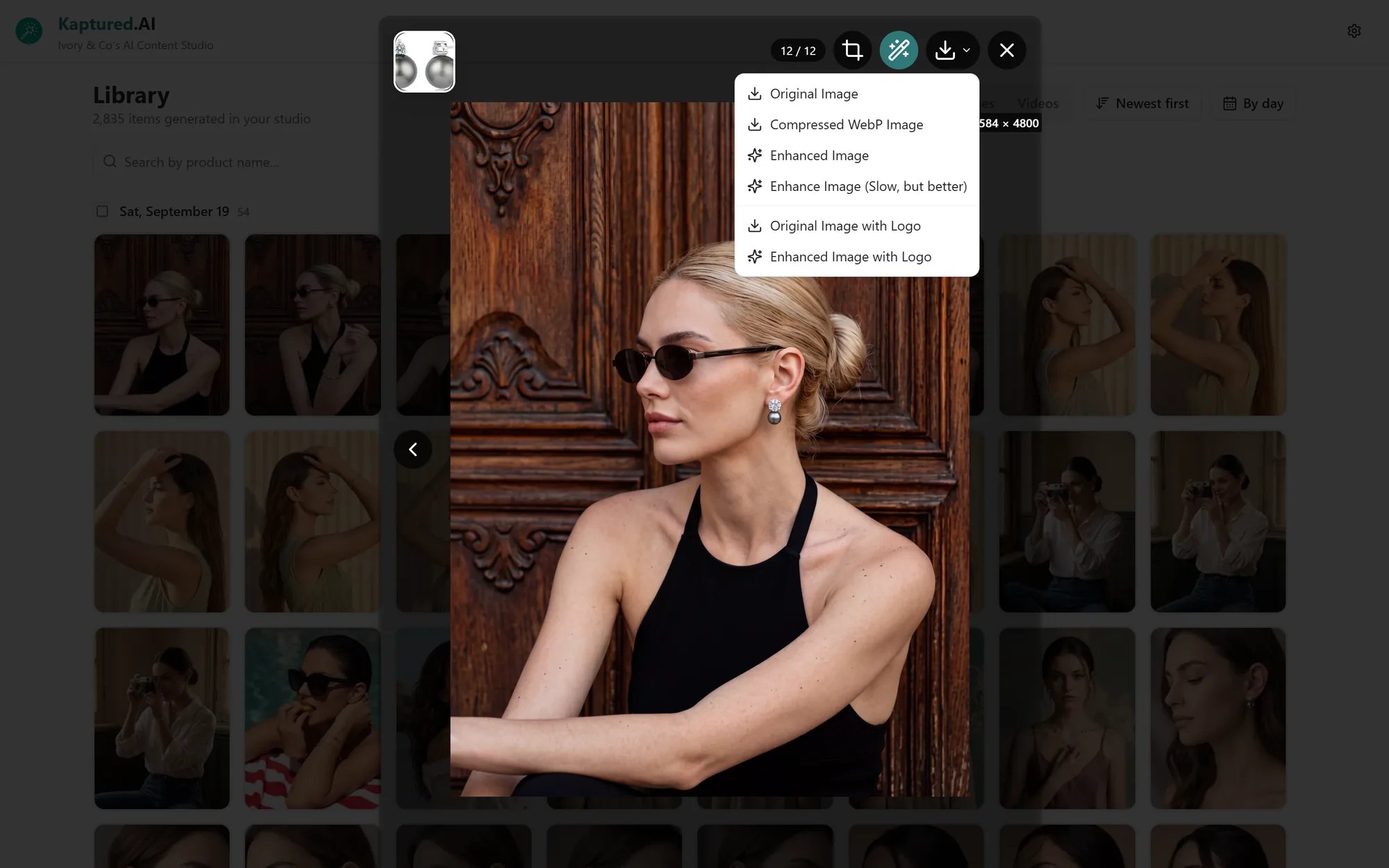 | Option | What you get | When to use it |
| ------------------------------------ | ---------------------------------------- | ------------------------------------------ |
| **Original Image** | Full-resolution PNG | Printing, further editing |
| **Compressed WebP Image** | Much smaller file, same look | Websites and marketplaces with size limits |
| **Enhanced Image** | Sharpened, upscaled copy | Larger prints and zoomable product pages |
| **Enhance Image (Slow, but better)** | Higher-quality upscale that takes longer | Hero images |
| **Original Image with Logo** | Original plus your shop logo | Social media |
| **Enhanced Image with Logo** | Enhanced plus your shop logo | Social media at high resolution |
* **Enhance** runs in your browser and uses **no credits**. When it finishes, click **Compare results** to see the before and after.
* The **with Logo** options use the logo and **Logo Position** from [Shop Settings](/getting-started/platform-overview/shop-settings). If you haven't uploaded one you'll see "No shop logo configured. Set a logo in Shop Settings."
* Enhanced and logo downloads are on paid plans.
Files are named after the product, for example `silk-kurta-image-created-by-kaptured-ai.png`.
## Download several at once
Use the **Download** menu above **Generations**: **Download All**, **Download Selected**, or **Download Selected by Product**. Tick images with the checkbox on each card to select them. To download across many products, use the [Library](/library/bulk-actions).
Generated images are deleted after **30 days**. Download anything you want to keep. See [Why Images Are Deleted After 30 Days](/library/auto-deletion).
## Related articles
* [Editing Images with AI](/editing-and-video/editing-images)
* [Bulk Download and Bulk Magic Edit](/library/bulk-actions)
* [Shop Settings](/getting-started/platform-overview/shop-settings)
| Option | What you get | When to use it |
| ------------------------------------ | ---------------------------------------- | ------------------------------------------ |
| **Original Image** | Full-resolution PNG | Printing, further editing |
| **Compressed WebP Image** | Much smaller file, same look | Websites and marketplaces with size limits |
| **Enhanced Image** | Sharpened, upscaled copy | Larger prints and zoomable product pages |
| **Enhance Image (Slow, but better)** | Higher-quality upscale that takes longer | Hero images |
| **Original Image with Logo** | Original plus your shop logo | Social media |
| **Enhanced Image with Logo** | Enhanced plus your shop logo | Social media at high resolution |
* **Enhance** runs in your browser and uses **no credits**. When it finishes, click **Compare results** to see the before and after.
* The **with Logo** options use the logo and **Logo Position** from [Shop Settings](/getting-started/platform-overview/shop-settings). If you haven't uploaded one you'll see "No shop logo configured. Set a logo in Shop Settings."
* Enhanced and logo downloads are on paid plans.
Files are named after the product, for example `silk-kurta-image-created-by-kaptured-ai.png`.
## Download several at once
Use the **Download** menu above **Generations**: **Download All**, **Download Selected**, or **Download Selected by Product**. Tick images with the checkbox on each card to select them. To download across many products, use the [Library](/library/bulk-actions).
Generated images are deleted after **30 days**. Download anything you want to keep. See [Why Images Are Deleted After 30 Days](/library/auto-deletion).
## Related articles
* [Editing Images with AI](/editing-and-video/editing-images)
* [Bulk Download and Bulk Magic Edit](/library/bulk-actions)
* [Shop Settings](/getting-started/platform-overview/shop-settings)