> ## Documentation Index
> Fetch the complete documentation index at: https://docs.kaptured.ai/llms.txt
> Use this file to discover all available pages before exploring further.
# Convert an Image to Video
> Turn a generated photo into a 4 to 8 second video clip for Reels, Stories and product pages.
**Convert to Video** turns one of your images into a short video clip: the model turns, walks, or the camera moves around the product.
Convert to Video is available on paid plans.
## Create a video
1. Open an image in the viewer, hover over it, and click **Convert to Video** in the preset row.
2. **Crop start frame** opens first. Choose **16:9** (horizontal) or **9:16** (vertical), adjust the zoom, and click **Apply crop**. You can change it later with **Adjust crop**. The **Image to Video** dialog then opens.
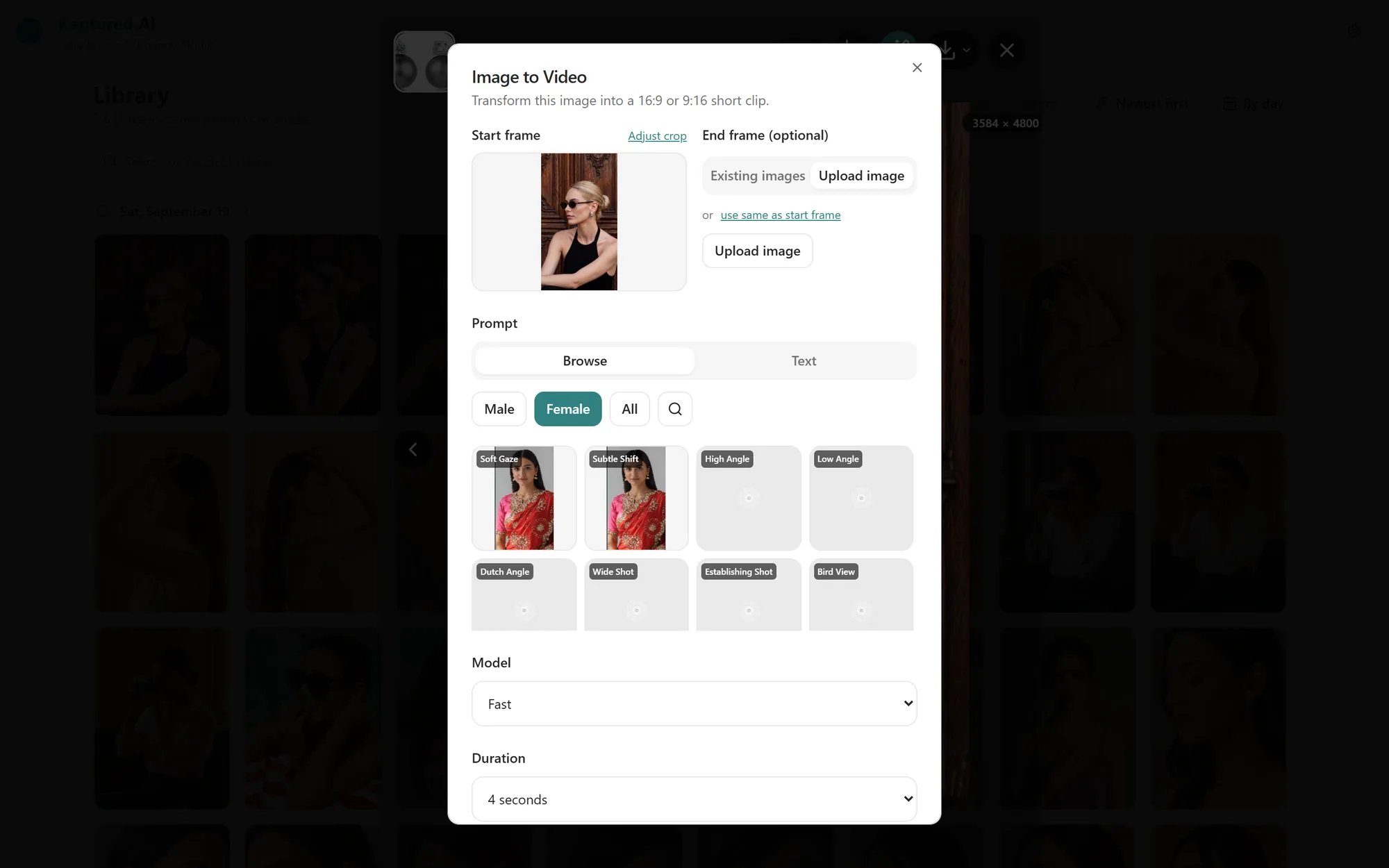 3. **End frame (optional):** pick another image from **Existing images**, **Upload image**, or click **use same as start frame**. The video moves from the start frame to the end frame.
4. **Prompt:** choose a motion from **Browse** (filter by **Male**, **Female** or **All**), or describe it on the **Text** tab.
5. **Model:** **Fast** (default), **Lite**, **Quality** or **Omni Flash**.
6. **Duration:** **4 seconds** (default), **6 seconds** or **8 seconds**.
7. Click **Generate Video**.
You see **Video generation started. We'll keep you posted!** A **Creating Magic...** card appears, and you get a **Video Ready!** notification when it's done. Most videos take a few minutes.
## Credits
| Model | 4 seconds | 6 seconds | 8 seconds |
| -------------- | --------- | --------- | --------- |
| **Lite** | 100 | 150 | 210 |
| **Fast** | 120 | 180 | 250 |
| **Omni Flash** | 120 | 180 | 250 |
| **Quality** | 200 | 300 | 400 |
*Credits per video. Your account may have different rates; the dialog shows the exact cost.*
Make one 4-second **Fast** video to check the motion. Once you like it, make the final with **Quality** or a longer duration.
## Writing a good motion prompt
The start frame already sets the look, so describe **movement**, not the scene:
* Good: "Slow push-in as the model turns toward the camera, hair moving in a light breeze"
* Less good: "A woman in a red kurta in a garden" (this just repeats the image)
Keep it to one or two movements for a short clip.
## Troubleshooting
1. **"Video generation failed. Please try again or contact support."**
**✅ Solution:** Try again. If it fails twice, try a simpler prompt or a different model.
2. **"You're out of credits to generate videos."**
**✅ Solution:** Top up or upgrade. See [How Credits Work](/subscription-and-billing/credits-explained).
3. **"Convert to video is not included in your current plan."**
**✅ Solution:** Contact us to add video to your plan.
## Related articles
* [Editing Images with AI](/editing-and-video/editing-images)
* [The Library](/library/library-overview)
* [How Credits Work](/subscription-and-billing/credits-explained)
3. **End frame (optional):** pick another image from **Existing images**, **Upload image**, or click **use same as start frame**. The video moves from the start frame to the end frame.
4. **Prompt:** choose a motion from **Browse** (filter by **Male**, **Female** or **All**), or describe it on the **Text** tab.
5. **Model:** **Fast** (default), **Lite**, **Quality** or **Omni Flash**.
6. **Duration:** **4 seconds** (default), **6 seconds** or **8 seconds**.
7. Click **Generate Video**.
You see **Video generation started. We'll keep you posted!** A **Creating Magic...** card appears, and you get a **Video Ready!** notification when it's done. Most videos take a few minutes.
## Credits
| Model | 4 seconds | 6 seconds | 8 seconds |
| -------------- | --------- | --------- | --------- |
| **Lite** | 100 | 150 | 210 |
| **Fast** | 120 | 180 | 250 |
| **Omni Flash** | 120 | 180 | 250 |
| **Quality** | 200 | 300 | 400 |
*Credits per video. Your account may have different rates; the dialog shows the exact cost.*
Make one 4-second **Fast** video to check the motion. Once you like it, make the final with **Quality** or a longer duration.
## Writing a good motion prompt
The start frame already sets the look, so describe **movement**, not the scene:
* Good: "Slow push-in as the model turns toward the camera, hair moving in a light breeze"
* Less good: "A woman in a red kurta in a garden" (this just repeats the image)
Keep it to one or two movements for a short clip.
## Troubleshooting
1. **"Video generation failed. Please try again or contact support."**
**✅ Solution:** Try again. If it fails twice, try a simpler prompt or a different model.
2. **"You're out of credits to generate videos."**
**✅ Solution:** Top up or upgrade. See [How Credits Work](/subscription-and-billing/credits-explained).
3. **"Convert to video is not included in your current plan."**
**✅ Solution:** Contact us to add video to your plan.
## Related articles
* [Editing Images with AI](/editing-and-video/editing-images)
* [The Library](/library/library-overview)
* [How Credits Work](/subscription-and-billing/credits-explained)