> ## Documentation Index
> Fetch the complete documentation index at: https://docs.kaptured.ai/llms.txt
> Use this file to discover all available pages before exploring further.
# Accessories
> Add footwear, jewelry, bags and props to your photoshoot, or upload your own.
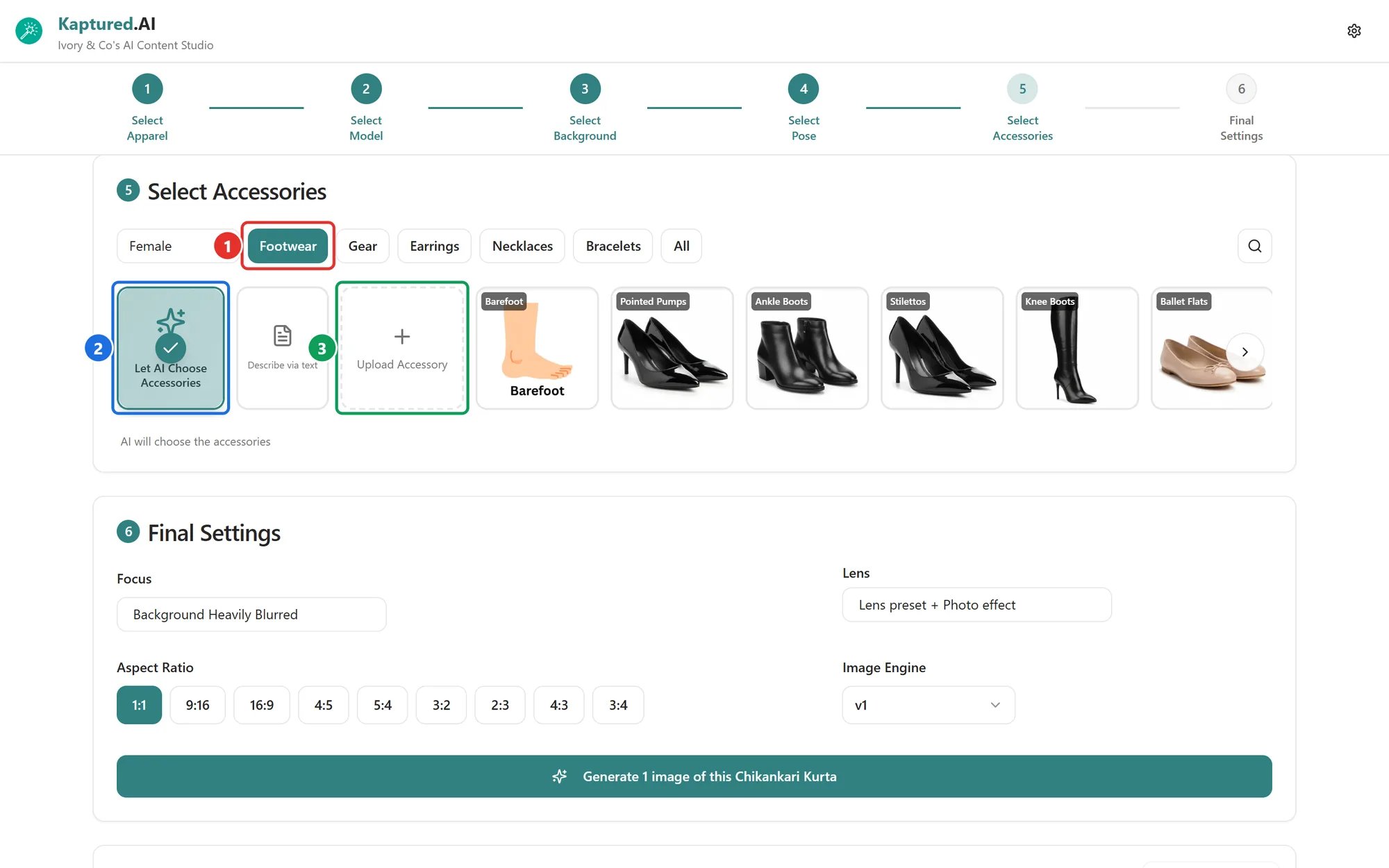
The **Select Accessories** step completes the look. You can pick from our library, upload your own, or let the AI choose.
 ## Let the AI choose
**Let AI Choose Accessories** (2) picks items that suit the product and model. It's the quickest option.
## Clothing and other products
1. Filter by **Male**, **Female**, **Kids** or **All**.
2. Narrow down by type (1): **Footwear**, **Gear**, **Earrings**, **Necklaces**, **Bracelets** or **Lowers**.
3. Click the items you want. Each one has a color menu; leave it on **Let AI pick color** or choose a color.
You can also click **Describe via text** and name the accessory in a few words.
## Jewelry
Jewelry shops see four tabs:
* **Objects**: items placed near the piece
* **Surfaces**: what the piece rests on
* **Retail Props**: display stands and boxes
* **Lighting Aids**
You can also **Describe via text** in up to 10 words.
Some [templates](/ai-photo-studio/jewelry-templates) don't allow surfaces or retail props.
## Upload your own accessories
Click **Upload Accessory** (3) (or **Upload Object** / **Upload Retail Prop** for jewelry) to use your own shoes, bags, props and so on.
* Up to **5** of your own items per generation.
* Up to **10** saved items.
* Retail prop photos must be under 5 MB.
## Clear your picks
Click **Clear all** to start the step again.
## Group shots
In a [Multi Product Shoot](/ai-photo-studio/group-shots), accessories are always picked by the AI.
## Related articles
* [Backgrounds and Poses](/ai-photo-studio/backgrounds-and-poses)
* [Final Settings and Image Engines](/ai-photo-studio/final-settings-and-image-engines)
* [Your First Photoshoot](/ai-photo-studio/your-first-photoshoot)
## Let the AI choose
**Let AI Choose Accessories** (2) picks items that suit the product and model. It's the quickest option.
## Clothing and other products
1. Filter by **Male**, **Female**, **Kids** or **All**.
2. Narrow down by type (1): **Footwear**, **Gear**, **Earrings**, **Necklaces**, **Bracelets** or **Lowers**.
3. Click the items you want. Each one has a color menu; leave it on **Let AI pick color** or choose a color.
You can also click **Describe via text** and name the accessory in a few words.
## Jewelry
Jewelry shops see four tabs:
* **Objects**: items placed near the piece
* **Surfaces**: what the piece rests on
* **Retail Props**: display stands and boxes
* **Lighting Aids**
You can also **Describe via text** in up to 10 words.
Some [templates](/ai-photo-studio/jewelry-templates) don't allow surfaces or retail props.
## Upload your own accessories
Click **Upload Accessory** (3) (or **Upload Object** / **Upload Retail Prop** for jewelry) to use your own shoes, bags, props and so on.
* Up to **5** of your own items per generation.
* Up to **10** saved items.
* Retail prop photos must be under 5 MB.
## Clear your picks
Click **Clear all** to start the step again.
## Group shots
In a [Multi Product Shoot](/ai-photo-studio/group-shots), accessories are always picked by the AI.
## Related articles
* [Backgrounds and Poses](/ai-photo-studio/backgrounds-and-poses)
* [Final Settings and Image Engines](/ai-photo-studio/final-settings-and-image-engines)
* [Your First Photoshoot](/ai-photo-studio/your-first-photoshoot)