> ## Documentation Index
> Fetch the complete documentation index at: https://docs.kaptured.ai/llms.txt
> Use this file to discover all available pages before exploring further.
# Two-Factor Authentication
> Protect your account with a 6-digit code from an authenticator app.
Two-factor authentication (2FA) asks for a 6-digit code from your phone each time you sign in, as well as your password. Even if someone learns your password, they can't get in without your phone.
## Turn it on
You need an authenticator app such as Google Authenticator, Authy, Microsoft Authenticator or 1Password.
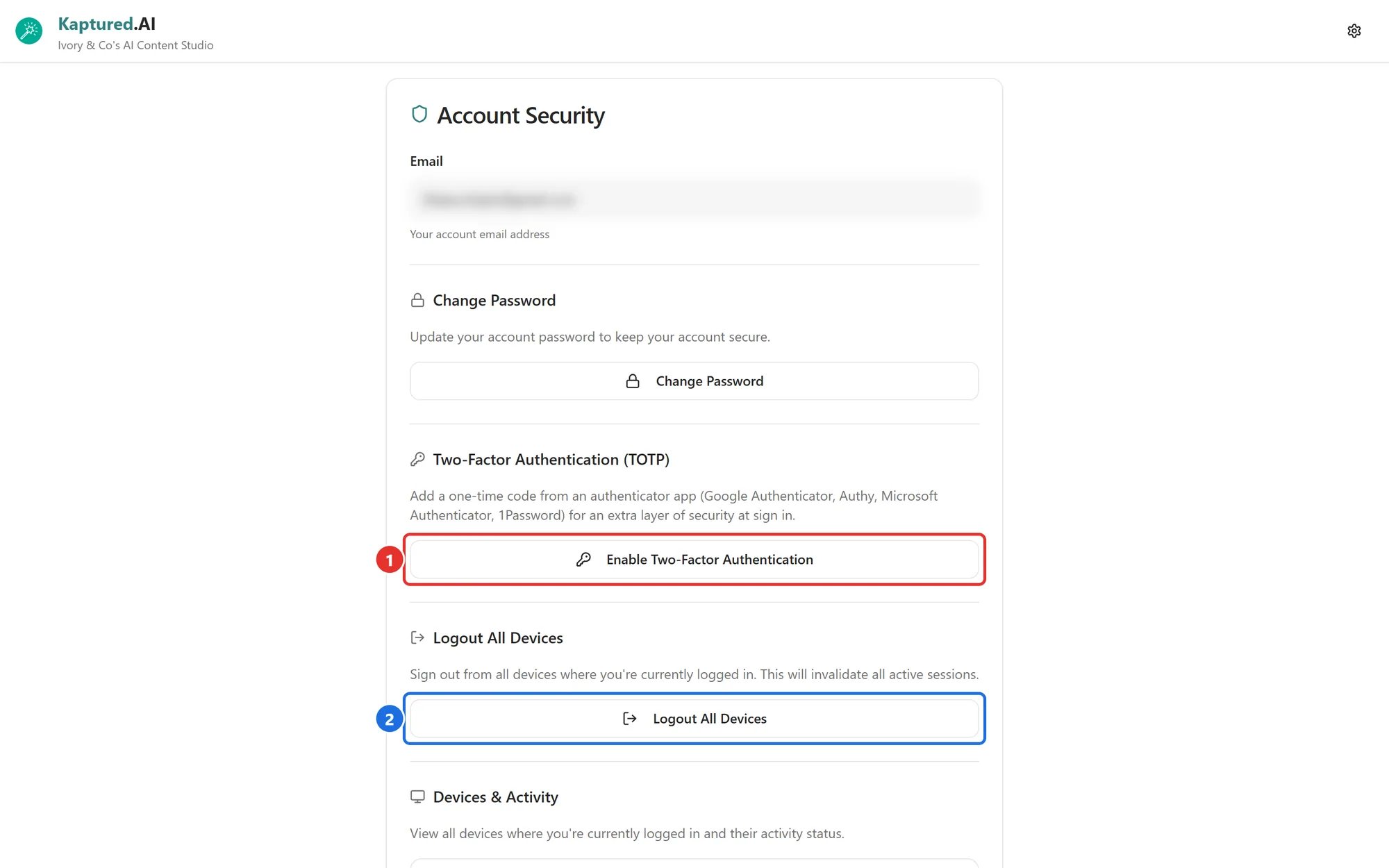
1. Open the profile menu and go to **Account Security**.
2. Under **Two-Factor Authentication**, click **Enable Two-Factor Authentication** (1).
 3. In **Set up Two-Factor Authentication**, scan the QR code with your authenticator app. (Can't scan? Use **Or enter this secret manually**.)
4. Type the 6-digit code the app shows into **Verification code**.
5. Click **Verify & Enable**.
You see **Two-factor authentication enabled**, and the section shows an **Enabled** badge.
Kaptured AI doesn't provide backup codes. If you use an app that can back up or sync codes (such as Authy, 1Password or Google Authenticator with cloud backup), turn that on so you don't get locked out if you lose your phone.
## Signing in with 2FA
After your password, you see **Two-factor authentication**. Enter the 6-digit code from your app; it's checked automatically once all 6 digits are in.
You have **15 minutes** to enter the code. The timer turns red in the last minute; after that you're signed out and need to start again. Click **Cancel and sign out** to stop.
## Turn it off
On **Account Security**, click **Disable** next to **Authenticator app configured** and confirm. You can turn it on again any time.
## Troubleshooting
1. **"Invalid code. Please try again."**
The code has changed, or your phone's clock is off.
**✅ Solution:** Wait for a fresh code and type it quickly. If it keeps failing, turn on automatic date and time on your phone.
2. **I lost my phone or deleted the app.**
**✅ Solution:** Email [aarushi@kaptured.ai](mailto:aarushi@kaptured.ai) from your account email and we'll remove 2FA so you can sign in and set it up again.
3. **Connecting Claude asks for my code.**
That's expected: signing in for the Claude connector uses 2FA too. See [Connect Claude to Kaptured AI](/integrations/connect-claude).
## Related articles
* [Devices, Sessions and Password](/account-and-security/devices-and-sessions)
* [Password Reset and Account Access](/getting-started/onboarding-first-steps/password-reset)
* [Creating Your Account and Signing In](/getting-started/onboarding-first-steps/create-your-account)
3. In **Set up Two-Factor Authentication**, scan the QR code with your authenticator app. (Can't scan? Use **Or enter this secret manually**.)
4. Type the 6-digit code the app shows into **Verification code**.
5. Click **Verify & Enable**.
You see **Two-factor authentication enabled**, and the section shows an **Enabled** badge.
Kaptured AI doesn't provide backup codes. If you use an app that can back up or sync codes (such as Authy, 1Password or Google Authenticator with cloud backup), turn that on so you don't get locked out if you lose your phone.
## Signing in with 2FA
After your password, you see **Two-factor authentication**. Enter the 6-digit code from your app; it's checked automatically once all 6 digits are in.
You have **15 minutes** to enter the code. The timer turns red in the last minute; after that you're signed out and need to start again. Click **Cancel and sign out** to stop.
## Turn it off
On **Account Security**, click **Disable** next to **Authenticator app configured** and confirm. You can turn it on again any time.
## Troubleshooting
1. **"Invalid code. Please try again."**
The code has changed, or your phone's clock is off.
**✅ Solution:** Wait for a fresh code and type it quickly. If it keeps failing, turn on automatic date and time on your phone.
2. **I lost my phone or deleted the app.**
**✅ Solution:** Email [aarushi@kaptured.ai](mailto:aarushi@kaptured.ai) from your account email and we'll remove 2FA so you can sign in and set it up again.
3. **Connecting Claude asks for my code.**
That's expected: signing in for the Claude connector uses 2FA too. See [Connect Claude to Kaptured AI](/integrations/connect-claude).
## Related articles
* [Devices, Sessions and Password](/account-and-security/devices-and-sessions)
* [Password Reset and Account Access](/getting-started/onboarding-first-steps/password-reset)
* [Creating Your Account and Signing In](/getting-started/onboarding-first-steps/create-your-account)